
Create a Challenge Category
To create a Challenge Category:
-
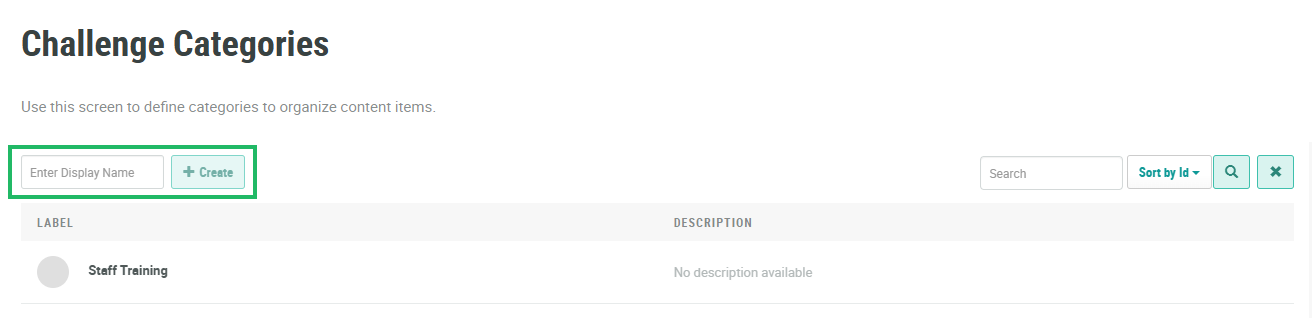
Select Challenges from the top navigation bar, then select Settings > Challenge Categories from the side navigation menu. The Challenge Categories screen is displayed.
-
In the Display Name field, enter a name for the new Challenge Category.
-
Click Create. The Edit Challenge Category pop-up window is displayed.
-
The Label field is populated with the value you entered above; optionally edit this value.
-
The Internal Name is automatically populated based on the Display Name value. This field is not editable by default. To edit the Internal Name, check Edit Internal Name. A confirmation dialog box is displayed; click Ok. Edit the Internal Name value.
-
Optionally, to assign a thumbnail image to this item, click Choose File. Browse to and select the desired image file, then click Open.
-
Optionally, in the Description field, enter a description of this item.
-
Click Save.
Add a Challenge to a Challenge Category
After creating the Challenge Category, you can begin adding Challenges to it. However, you can't add Challenges to the Challenge Category from the Challenge Categories screen. Instead, you must navigate to the Challenge Details screen, and add the desired Challenges one at a time to the Challenge Category.
To add a Challenge to a Challenge Category:
-
Select Challenges from the top navigation bar, then select Challenges > Challenges from the side navigation menu. The Challenges screen is displayed.
-
Optionally, search for and select the desired Challenge (see Search for a Challenge for more information on the available search options). The Challenge Details screen is displayed with the Definition tab selected.
-
Within the Challenge Details section of the Definition tab, from the Categories drop-down menu, select the desired Challenge Category. Optionally repeat this step to assign the Challenge to multiple Categories.
-
Click Save.
